Change a password you know
- Open Account and find Change password.
- Enter your Current password.
- Enter a New password with at least eight characters and repeat it in Confirm new password.
- Choose Change password. If asked for an email verification code, enter the code sent to your inbox and submit again.
- Sign in again with your new password after the update.
Reset a forgotten password
- On Sign in, choose Forgot password?.
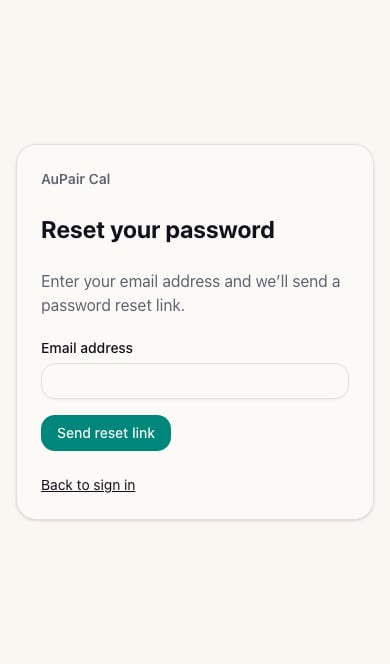
- Enter your account email and choose Send reset link.
- Open the recovery message in that inbox.
- Check the account shown, then choose Continue to reset password if prompted.
- Enter and confirm your new password, choose Save new password, and sign in again.